Create product trials
You can create new product trials for your preconfigured products.
Create a product trial in the UI console
-
In the left sidebar, go to LICENSING > Products. The product list opens.
-
Click the three-dot menu for the product for which you want to create a product trial, and select Product trials. The list of that product’s product trials opens.
-
Click Create new to open the form.
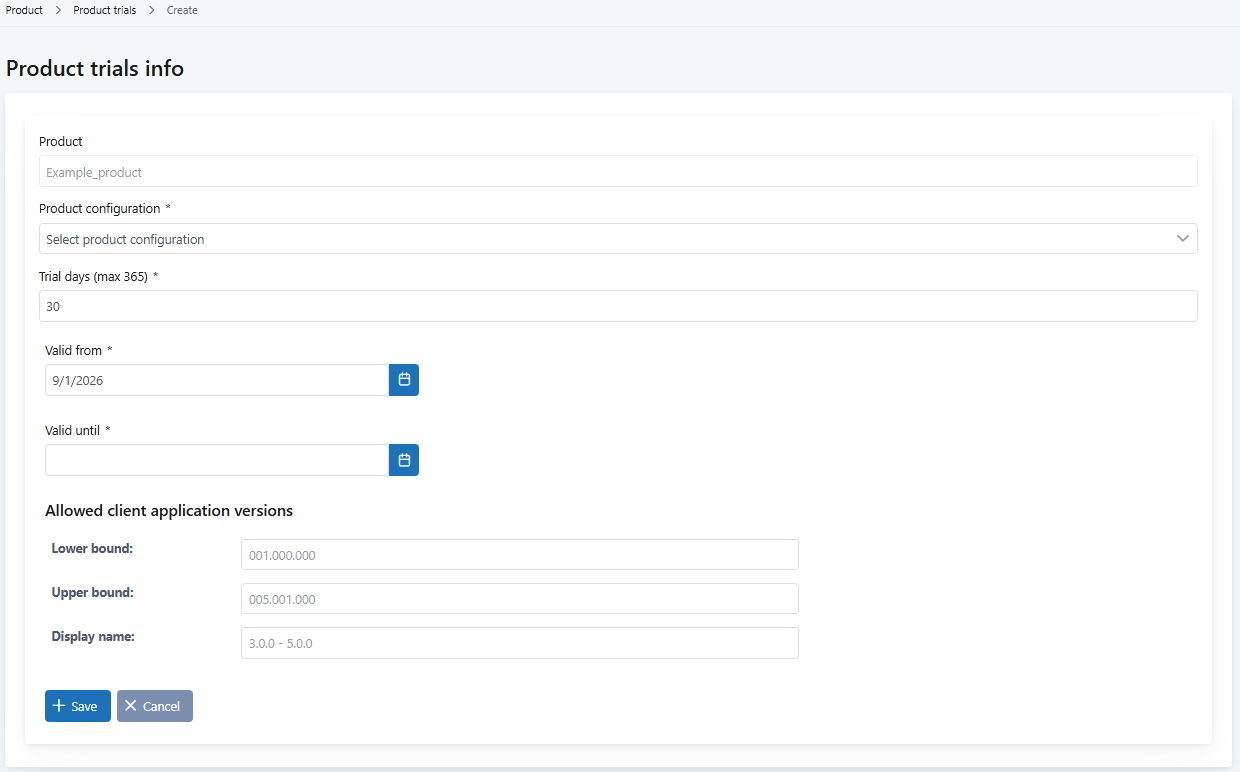
-
In Product configuration, select the product configuration to use.
-
In Trial days, define the number of the days a product can be trialed.
-
In Valid from, define the start date for the product trial.
-
In Valid until, define the end date for the product trial.
-
In Allowed client application versions (optional), define the range of client application versions that are allowed in the product trial. Include the necessary number of padding digits in the version range, if your product versioning requires it.
-
Lower bound: Define the lowest version for the allowed client application range. If you leave this empty, the version range does not have a lower bound.
-
Upper bound: Define the highest version for the allowed client application range. If you leave this empty, the version range does not have an upper bound.
-
Display name: Enter the display name for the version range allowed in the product trial.
-
-
Click Save to create the product trial.
Create a product trial through the API
Use the following License Management API operation:
| Operation | URL (relative, prepend the environment base URL) |
|---|---|
| Create a new product trial | POST /product-trials |
Next steps
- Provide the generated activation code to your end customer.