Manage license keys
You can manage license keys using the 10Duke Scale UI console.
You can attach a license key to a license or detach a key from a license. This allows for example renewing subscriptions by unassigning a license from a key and adding a new license to that same key without causing any service interruption for your end customers.
You can also set an existing license key to a license when issuing licenses.
Attach a license key to a license in the UI console
To attach a new license key to a license:
-
In the left sidebar, go to LICENSING > Customers. The customer list opens.
-
Find the customer to whose license you want to attach a license key, click the three-dot menu for the customer, and select Licenses.
-
Click the three-dot menu for the license, and select Manage license key. The manage license key form opens.
-
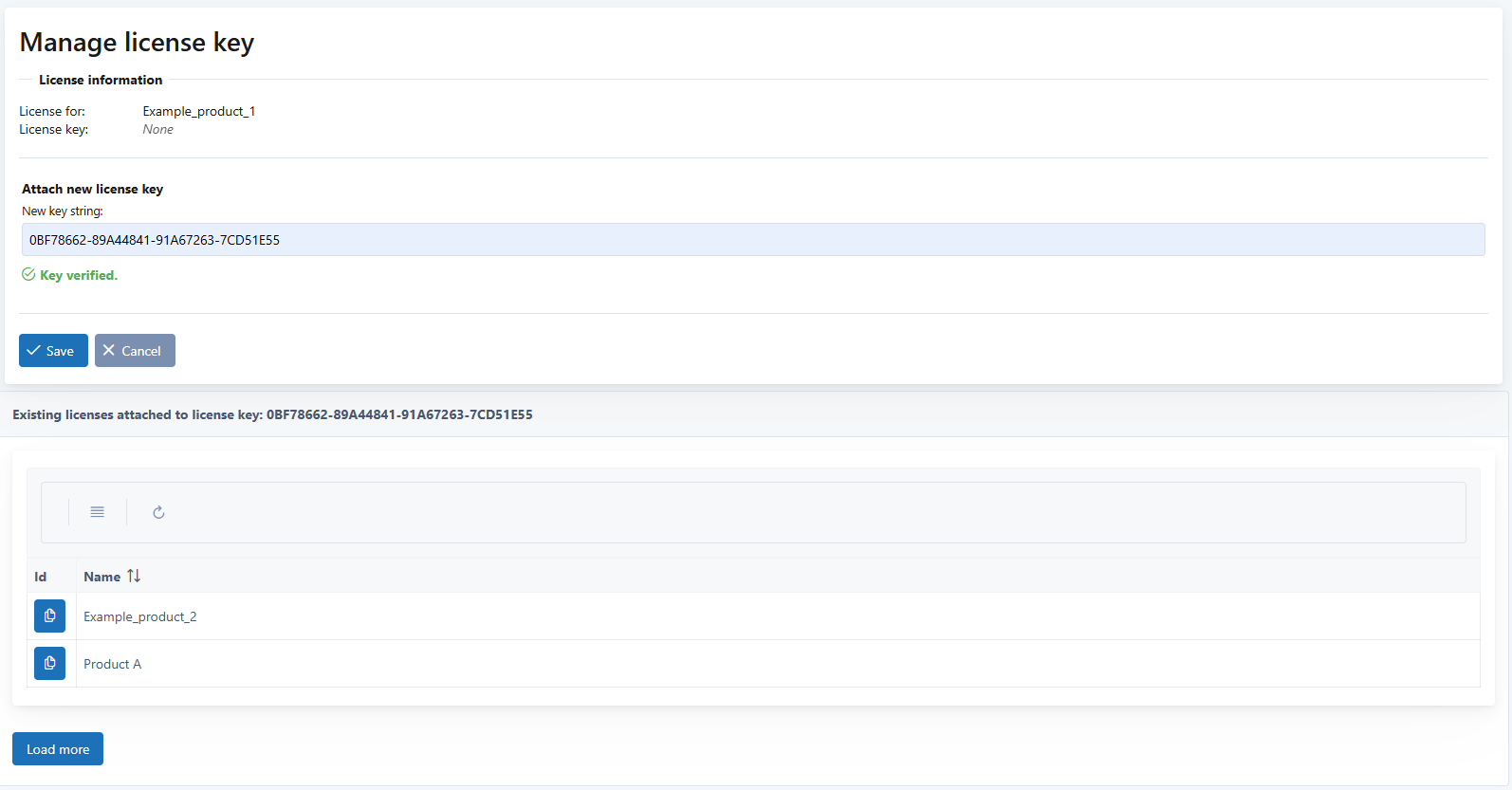
In Attach new license key, enter the license key string.
The key is verified, and the table below shows the licenses attached to this license key.
-
Click Save.
-
Click Yes to confirm attaching the new key.
Detach a license key from a license in the UI console
To detach a license from a license:
-
In the left sidebar, go to LICENSING > Customers. The customer list opens.
-
Find the customer from whose license you want to detach a license key, click the three-dot menu for the customer, and select Licenses.
-
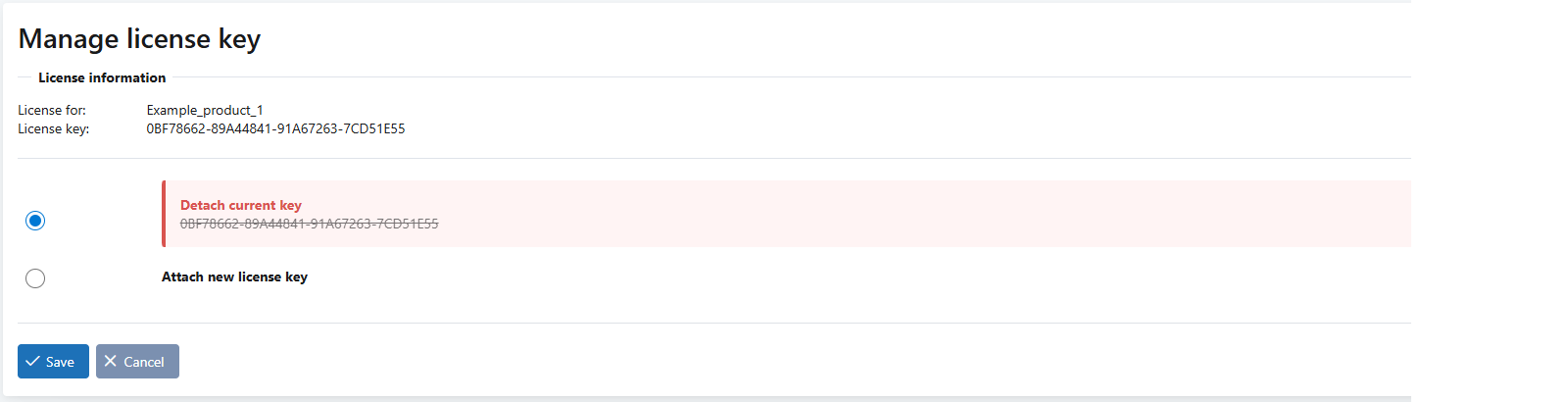
Click the three-dot menu for the license, and select Manage license key. The manage license key form opens.
-
Select Detach current key and click Save.
-
Click Yes to confirm detaching the key.